Alert Examples
CenterScape provides a means to allow the user to create alerts on many thresholds. In this section we will cover alerting on Temperature above a certain threshold, Fluid detected, and door open for too long.
How to create an alert when temperature sensors exceed a certain threshold
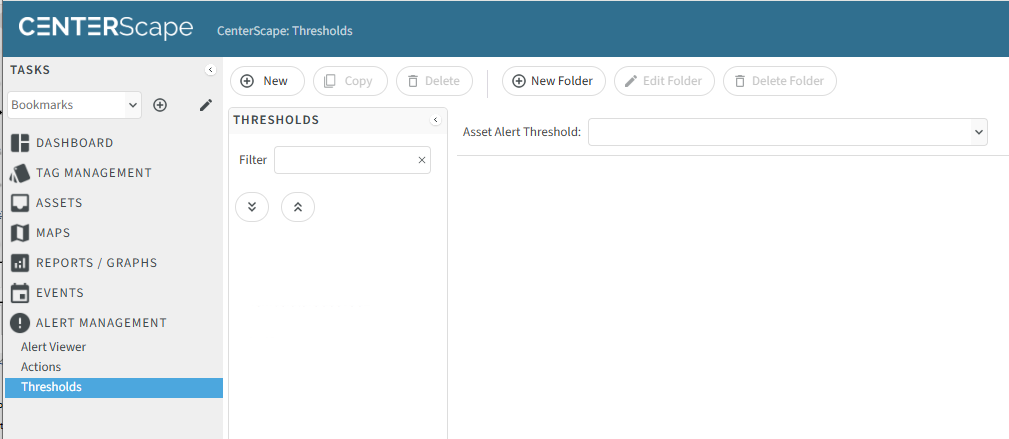
One of the most common use cases is to alert when temperatures exceed a certain threshold. To do this, navigate to the CenterScape User Console->Alert Management->Thresholds
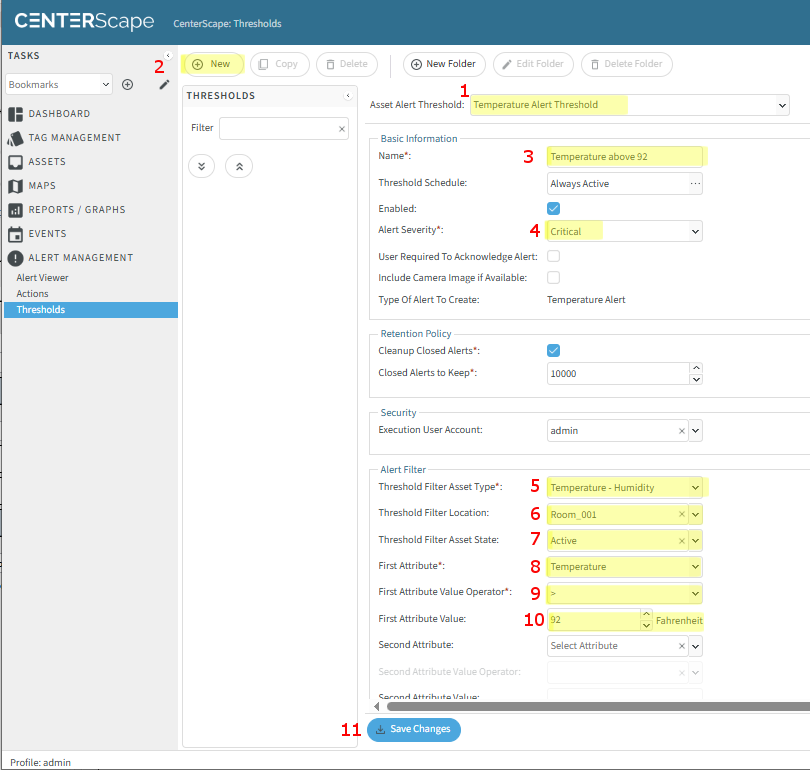
- Click ‘New’
- Select ‘Temperature Alert Threshold’ as the Alert Asset Threshold
- Create a Name for the Threshold
- Give the Threshold an Alert Severity
- Select ‘Temperature – Humidity’ as the Filter Threshold Asset Type
- Give the Threshold a location. In this example we will alert on every temperature sensor in ‘Room_001’ that exceeds 92 degrees F.
- Make sure the Asset State is ‘Active’
- Change the First Attribute to ‘Temperature’
- Change the First Attribute Value Operator to be > (greater than)
- Set the First Attribute Value to equal the temperature you want to alert on. In this example we set it to 92.
- Click ‘Save Changes’
Now whenever a temperature sensor in Room_001 is above 92 F, an alert will be generated. This alert can also be emailed to team members responsible for cooling, but this covered in a different section.
How to create an alert when a door is open over a certain amount of time
If you are using Door Open/Close sensors (R120 RFCRCK sensors) there might be times where you would want to alert when certain doors are opened for a certain amount of time. For instance, it is normal for a hot aisle containment door to be opened periodically, but not left open. You can create an alert for a door that is open for more than n seconds (240 seconds in the below example)
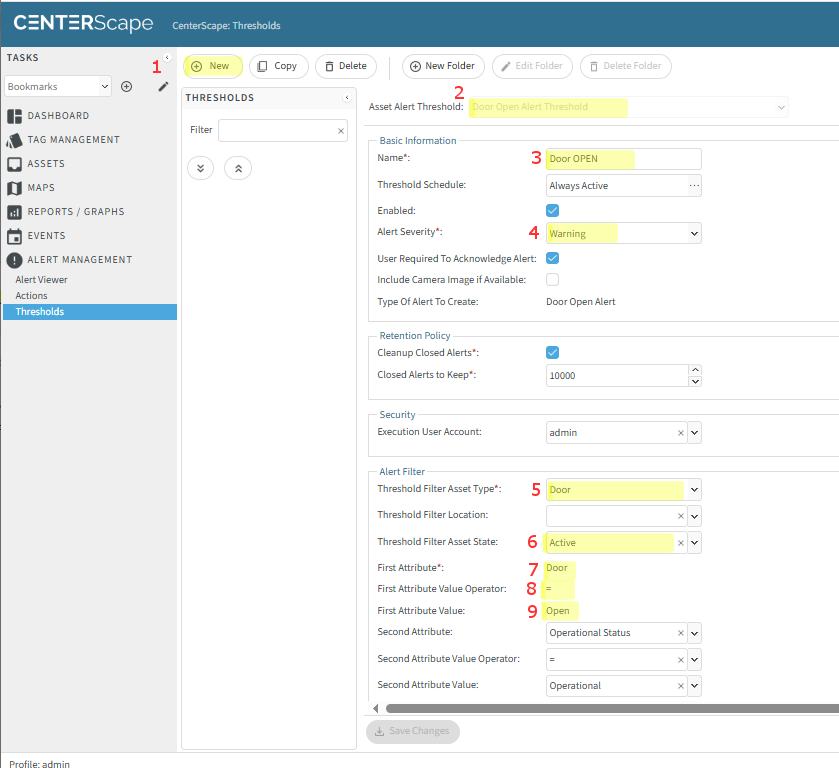
- Click ‘New’
- Select ‘Door Open Alert Threshold’ as the Alert Asset Threshold
- Create a Name for the Threshold
- Give the Threshold an Alert Severity
- Select ‘Door’ as the Threshold Filter Asset Type
- Make sure the Asset State is ‘Active’
- Change the First Attribute to ‘Door’
- Change the First Attribute Value Operator to be = (equal to)
- Set the First Attribute Value to ‘Open’
- Set the Threshold Delay – you might have to scroll down on the screen. In this example it is set to 240 seconds – if a door is opened for longer than 240 seconds (4 minutes) an alert will be triggered. The alert will not trigger is the door is opend and then closed before 240 seconds elapses.
- Click ‘Save Changes’
How to omit certain sensors from a threshold
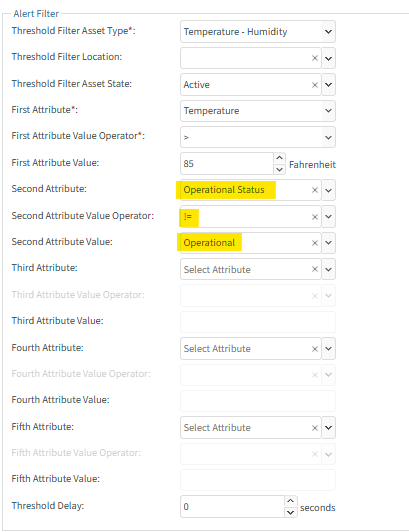
There may be times when you want to omit certain sensors from triggering a threshold. For example, if you have some known hotspots in your datacenter that are always hotter than your set max temperature threshold, you can use other attributes of those specific sensors and modify the threshold to exclude those attribute values. Let’s say that RACK_DR_3 in the Demo Room is always hotter than our max temperature threshold of 85 and that we would like to silence alarms being generated by these 3 temperature sensors.
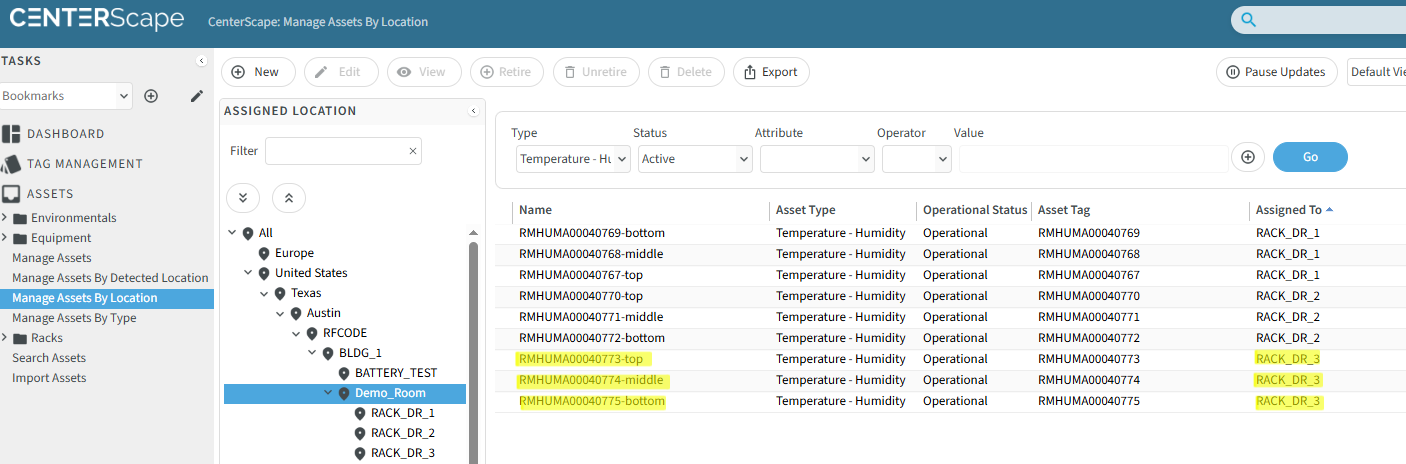
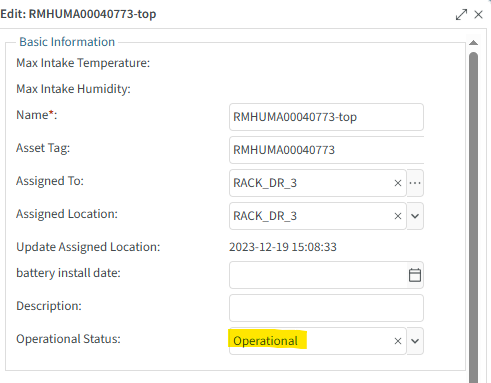
We can edit each sensor’s Operational Status and change it from Installed to Operational.
Now we can edit the max temp threshold to omit sensors that have their Operation Status set to Operational by adding a Second Attribute, Value Operator, and Value. (Operational Status != Operational)